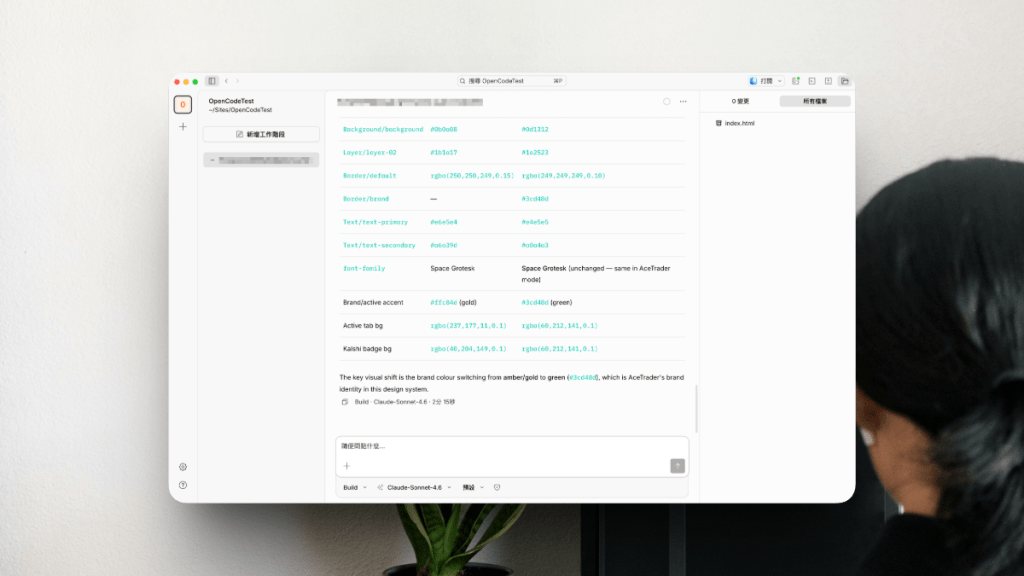
This logs my ongoing experiments with AI in the product design and development cycle.
- Evolving the Workflow
- Setting Up OpenCode × Poe × Figma MCP
- Figma Console MCP
- Organise Inspirations in Eagle with AI
Updated on Mar 21, 2026
Evolving the Workflow
Our latest project abandoned the traditional “design-first” waterfall process. Since our Product Manager already had a detailed blueprint, from concept to interface layout, so I proposed an AI-accelerated workflow to speed up delivery:
- Vibe Coding: The PM and engineers use AI to build functional prototypes directly from requirements, references and the existing design system. They focus on core functionality early.
- Design in Parallel: Designers work simultaneously on the experience, master UI, navigation and flows. This concurrency gives us time to tackle complex scenarios and conduct deeper research.
- Collaborative Iteration: Engineers realign the code with the finalised designs for testing.
The Current Bottlenecks
This approach speeds us up, but one hurdle remains:
The disconnect between design files and production code.
We lack a secure, unified environment for bidirectional sync between designers and engineers. Engineers own both the “design-to-code” and “code-to-design” phases. It requires engineers extra effort to reverse code back into editable designs. Without a “single source of truth”, teams must heavily rely on testing or production environments to understand full product logic and use cases.
Embracing the Shift
From a design lead perspective,
- Do not treat “design-first” versus “code-first” as dogma. The right approach depends on the project’s context and constraints.
- Do not fear AI bypassing or replacing designers. Embrace new workflows and tools as an inevitable evolution. AI handles repetitive, manual tasks; we focus on what matters: visual craft, user experience and product strategy.
Setting Up OpenCode × Poe × Figma MCP
The Figma MCP lets AI coding tools like Claude, Cursor and Windsurf work directly with your Figma designs. In regions like Hong Kong, accessing these platforms often requires VPNs or phone verification, which risks account suspension.
To work around this, I use a Poe subscription to connect the Poe API to OpenCode—an open-source, terminal-first AI assistant, then deploy the Figma MCP locally.
Note: The setup below involves some technical steps.
Step 1. Connect Poe to OpenCode
- Ensure you have an active Poe subscription.
- Install the OpenCode desktop app and follow the official guide for your environment.
Tip: If the opencode command is not recognised, install it via your native Terminal using this guide. - In OpenCode, go to Settings > Providers > Custom Provider and enter your Poe API details:
- Provider ID: (e.g.) Poe_Claude
- Display Name: (e.g.) Poe
- Base URL: https://api.poe.com/v1
- API Key: (Your API key)
- Model(s): (e.g.) claude-sonnet-4.6 (or the latest available model)
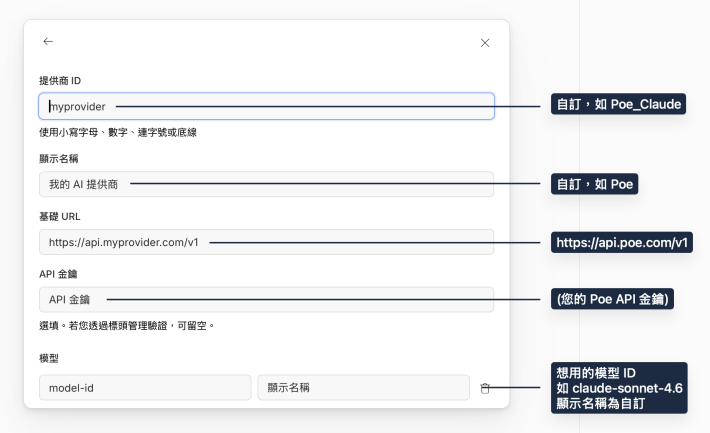
Step 2: Add Figma MCP to OpenCode
The OpenCode Desktop App does not yet support MCP configuration in the interface, To use the terminal:
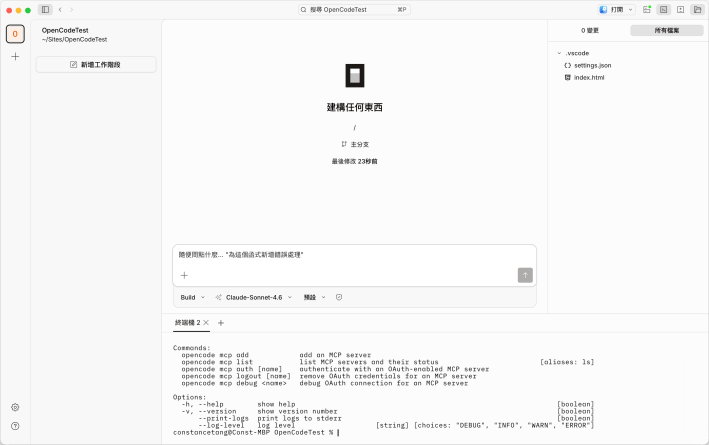
- Open the OpenCode terminal or your native terminal, then run: opencode mcp add
- Fill in the details:
- MCP Server name: figma
- MCP Server type: Choose Remote even for local https setups
- MCP Server URL: http://127.0.0.1:3845/mcp (this URL appears when you first configure in Figma Dev Mode)
- In Figma Dev Mode, enable the Figma MCP server.
- Restart your terminal. You should now see Figma MCP marked as ready in the status menu.
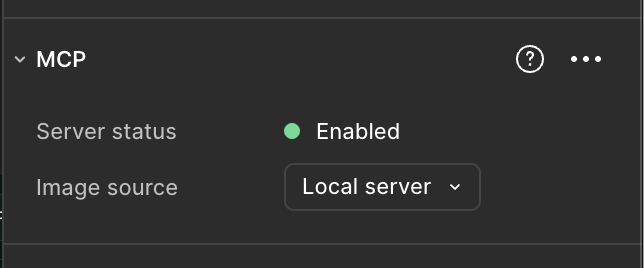
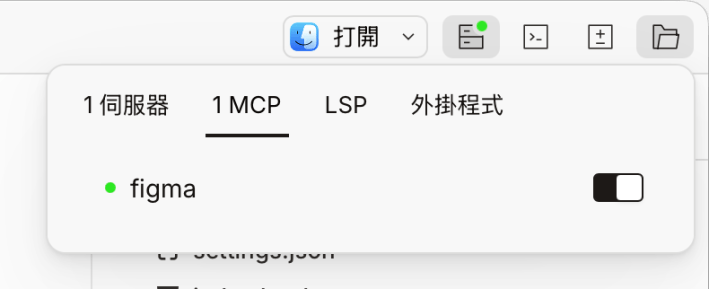
Testing the Integration
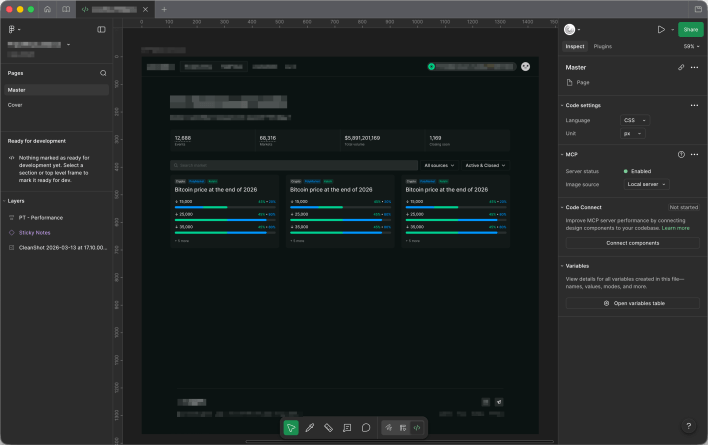
I tested the setup by asking the AI to turn a Figma design into production-ready code:
Implement this design to production-ready code: {figma file link} using the design system in {figma file link}
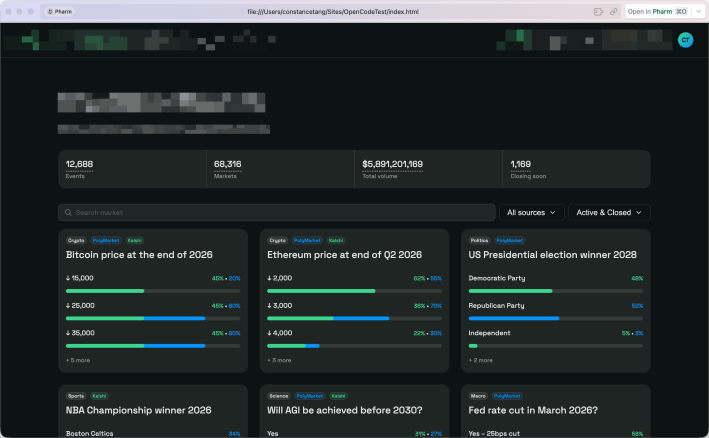
Results:
- Fidelity: The output varies by model, but the generated page closely matched the original design and included placeholder data.
- Context: Without thorough documentation and context, the AI sometimes misunderstood the data or requirements.
- Design System: The AI/MCP can reference variable collections in Figma, but with multiple modes, you must explicitly specify the exact collection mode in your prompt.
- Code: Getting code that fits a specific front‑end framework still requires iterative prompting.
Figma Console MCP
I am experimenting with Figma Console MCP by Southleft.
Unlike the read-only official Figma MCP, Figma Console MCP supports both read and write. This lets you manage design variables and system components directly, and lets AI actively design in Figma.
In my view, vibe-design serves designers better than vibe-coding serves engineers. Coding belongs to engineers, while vibe-design increases our work efficiency.
To use Figma Console MCP, first install the Desktop Bridge plugin in Figma by importing the plugin manifest. This plugin sets up the WebSocket connection between your AI assistant and the Figma desktop app.
I have installed the plugin and configured the MCP. It works in Cursor, but I am still working out how to connect it to OpenCode.
Organise Inspirations in Eagle with AI
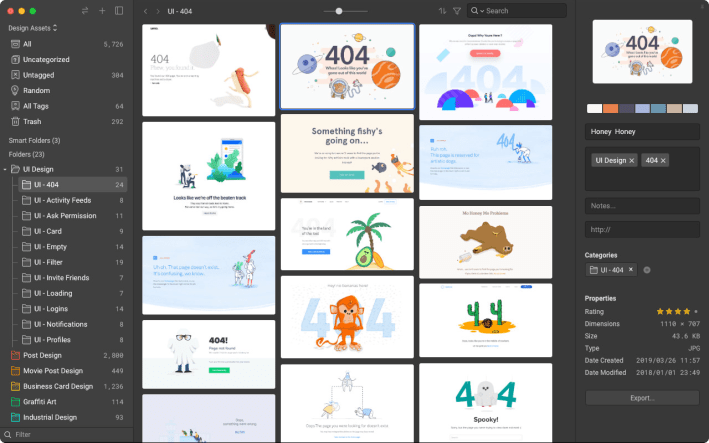
The design asset management software, Eagle introduced MCP and Skills starting from version 5.0, letting you manage local assets using natural language.
Capabilities:
- 🔍 Smart Search: Find assets based on complex subjects or themes.
- 🧠 Context Analysis: Evaluate existing tags, folders and annotations.
- 🧹 Tag Cleanup: Automatically merge or delete tags with synonyms, typos or low usage.
- 🗂️ Automated Organisation: Group assets by context automatically.
- 🔠 Semantic Renaming: Convert vague filenames into descriptive titles.
- 🪣 Assets Collection: Crawl URLs to identify, tag and save high-quality materials.
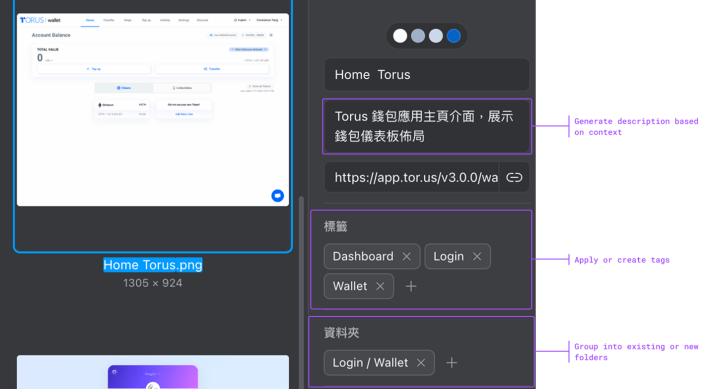
Using Eagle MCP and Skills within OpenCode, I now
- Analyse unfiled assets and generate objective, specific description.
- Suggest tags based on existing ones, proposing new tags only when necessary.
- Plan reorganisation for my “Web3” folder, creating subfolders when needed.
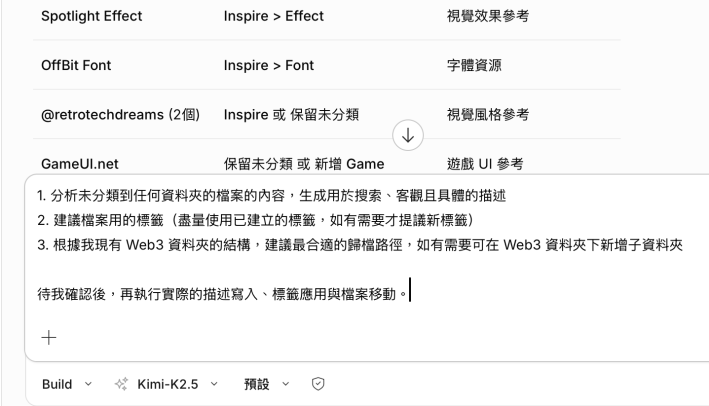
Tip: Claude Sonnet 4.6 delivers the highest accuracy but consumes heavy tokens even without MCP. For a cost-effective alternative, try other models like Kimi K2.5.
