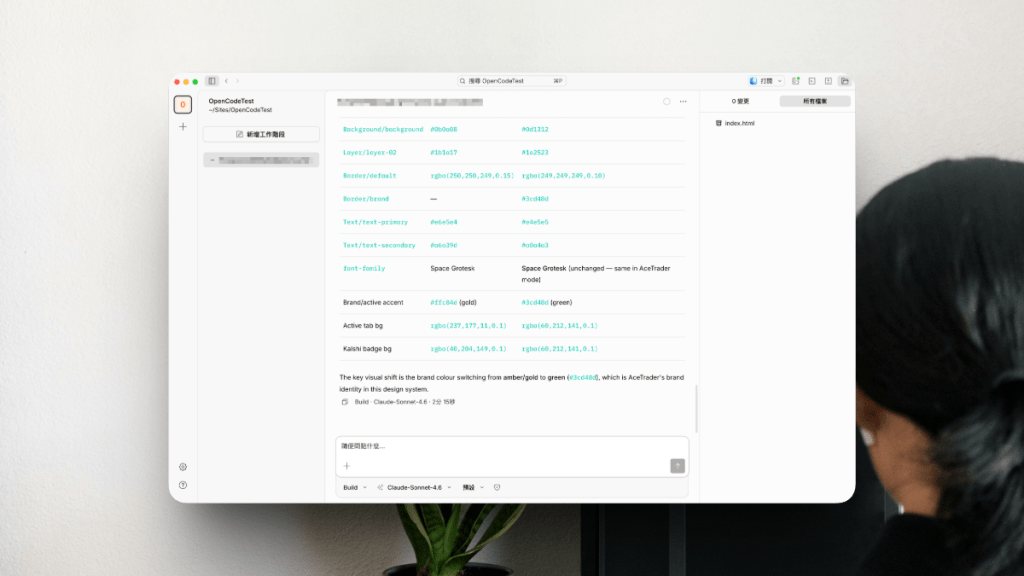
I am documenting my ongoing experiments with AI integration throughout the product design and development lifecycle.
- Evolving the Workflow
- Setting Up OpenCode × Poe × Figma MCP
- Bidirectional Workflows with Figma Console MCP
- Agentation: Closing the Feedback Loop
- 🆕 Add UI Transitions with AI
- AI-Powered Asset Management in Eagle
Updated on Jul 2, 2026
Evolving the Workflow
For our most recent project, we pivoted away from the traditional “design-first” waterfall process. With our Product Manager having already established a detailed blueprint from concept to layout, I suggested leveraging AI to accelerate our delivery.
- Vibe Coding: PM and engineers utilise AI to prototype directly from requirements and existing design systems, allowing core functionality to be validated early.
- Design in Parallel: Meanwhile, designers work concurrently on the experience, navigation and UI. This parallel track provides the breathing room necessary to address edge cases and conduct deeper research.
- Collaborative Iteration: Once the design is finalised, engineers realign the AI-generated code to match the refined designs for testing.
The Persistent Friction: Design vs. Code
Despite these gains, a fundamental hurdle remains: the disconnect between design files and production code.
Currently, we lack a unified environment that enables bidirectional syncing. Engineers still carry the heavy lifting of “design-to-code” and the even more tedious “code-to-design” reverse engineering. Without a “single source of truth”, teams often fall back on production environments just to understand the product’s current state.
Embracing the Change
From my perspective,
- Don’t treat “design-first” versus “code-first” as dogma. The right approach depends on the project’s context and constraints.
- Don’t worry about AI replacing designers. New workflows are coming whether we like them or not. Let AI handle the repetitive tasks. Focus on what matters: visual craft, user experience and product strategy.
Setting Up OpenCode × Poe × Figma MCP
The Figma MCP enables AI coding tools like Claude, Cursor, and Windsurf to interact directly with Figma files.
Note for Hong Kong Users: Accessing these tools often necessitates a VPN, which carries the risk of account suspension. To mitigate this, I link a Poe API subscription to OpenCode (an open-source, terminal-first AI assistant) and configure the Figma MCP locally.
Key Insight: Direct Subscriptions vs. Aggregators
April 15 Update: Native subscriptions generally outperform aggregators. Connecting Claude to OpenCode via Poe or OpenRouter can make managing the context window difficult. These platforms often consume “compute points” rapidly due to the “chatty” nature of MCP data exchange, burning through tokens faster than the native Claude interface.
Step 1. Connecting Poe and OpenCode
Poe now supports OpenCode. Follow the official guide to connect to OpenCode with one click, without any additional configuration required.
If doing it manually…
- Ensure you have an active Poe subscription.
- Install the OpenCode desktop app and follow the official guide for your environment.
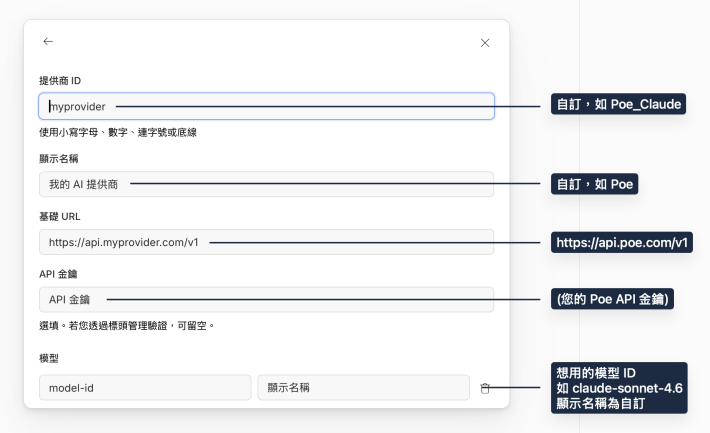
Tip: If theopencodecommand is not recognised. Install it via your native Terminal using this guide. - In OpenCode, go to Settings > Providers > Custom Provider and enter your Poe API credentials:
- Provider ID: (e.g.) Poe_Claude
- Display Name: (e.g.) Poe
- Base URL: https://api.poe.com/v1
- API Key: (Your API key)
- Model(s): (e.g.) claude-sonnet-4.6 (or the latest available model)
Step 2: Adding Figma MCP
The OpenCode Desktop App does not yet support MCP configuration in the interface. Use the terminal:
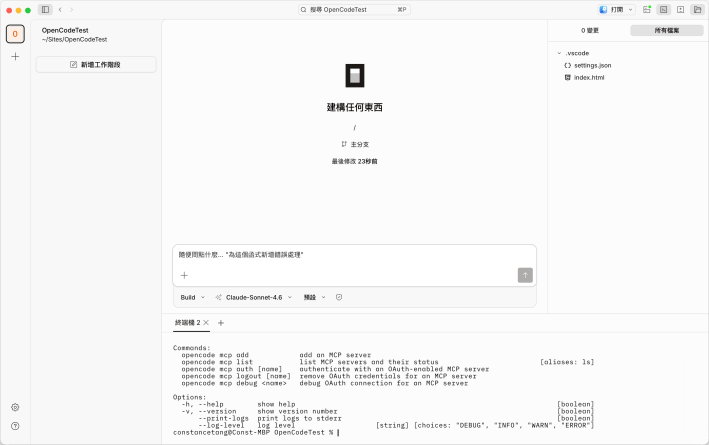
- Open the OpenCode terminal or your native terminal, then run:
opencode mcp add - Fill in the details:
- MCP Server name:
figma - MCP Server type: Choose
Remoteeven for local HTTPS setups - MCP Server URL: http://127.0.0.1:3845/mcp (this URL appears when you first configure in Figma Dev Mode)
- MCP Server name:
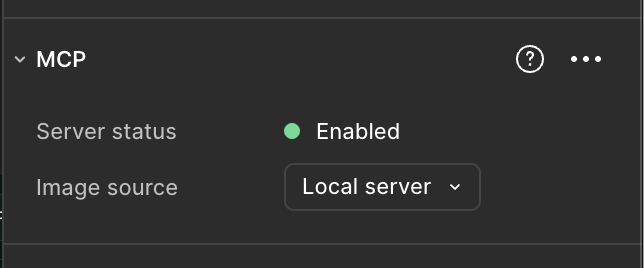
- In Figma Dev Mode, enable the Figma MCP server.
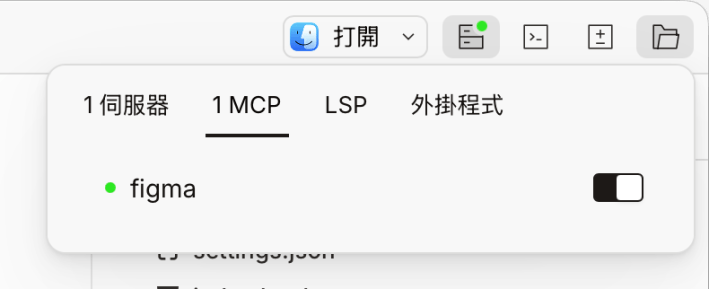
- Restart your terminal. You should now see Figma MCP marked as ready in the status menu.
Testing the Integration
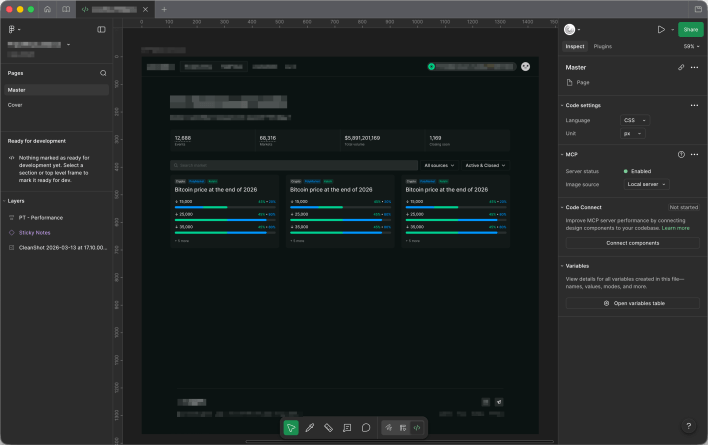
I tested the setup by asking the AI to turn a Figma design into production-ready code:
Implement this design to production-ready code: {figma file link} using the design system in {figma file link}
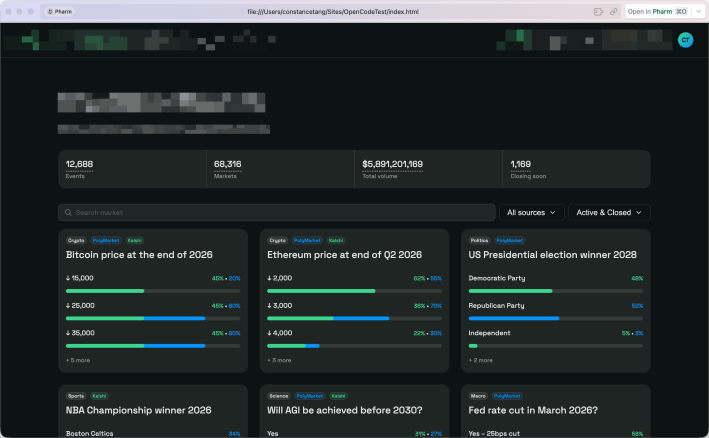
Results:
- Fidelity varies by model, but the generated page usually came close to the original design and included placeholder data.
- Context was the main point. Without solid documentation, the AI would misread data or requirements.
- Design System worked, but only if I explicitly told it which variable collection mode to use.
- Code quality depended on how much I iterated on the prompt to align it with our front-end framework.
Bidirectional Workflows with Figma Console MCP
I have been exploring the Figma Console MCP by Southleft. Unlike the official read-only version, this allows for write-access, enabling AI to manage design variables and components directly within Figma.
In my view, designers stand to gain more from “vibe-design” than “vibe-coding”. While coding is often seen as overhead for designers, “vibe-design” accelerates our core competency: visual and functional problem-solving.
To get it running, you need to install the Desktop Bridge plugin in Figma by importing the plugin manifest. This establishes the WebSocket connection between your AI assistant and the Figma desktop app.
I’ve got the plugin installed and the MCP configured. Works fine in Cursor. Still figuring out how to connect it to OpenCode, though.
Agentation: Closing the Feedback Loop
Once AI generates code via the Figma MCP, the challenge shifts to refinement. I’ve integrated Agentation into my workflow. It allows for precise UI annotations on localhost, converting them into structured context (CSS selectors, file paths) that the AI can target immediately. This significantly reduces the “back-and-forth” common in AI-assisted development.
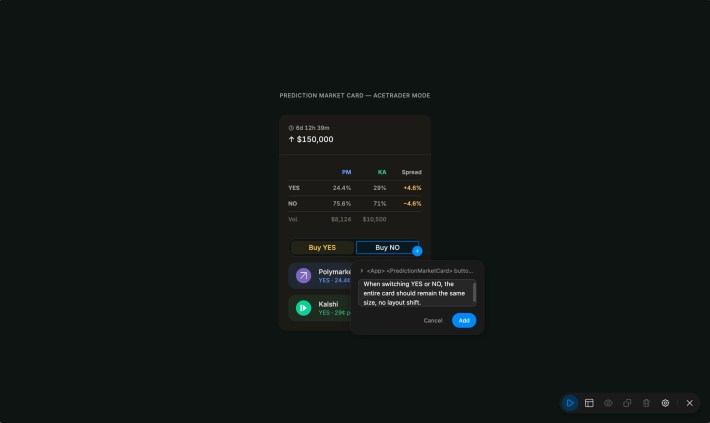
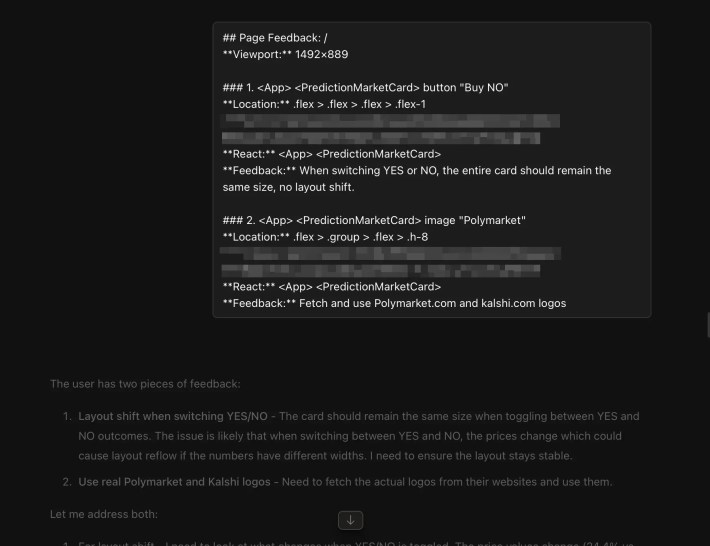
Some hurdles when I vibe-coded the designs:
- Model matters. When I asked AI to update the Polymarket and Kashi logos, only Claude Sonnet 4.6 fetched the correct icons from the internet.
- Figma MCP often misreads variable modes. I have to prompt repeatedly for the correct variable mode. Corner radius also requires multiple attempts to get right.
🆕 Add UI Transitions with AI
For many UI/UX designers, we might not have enough technical skills in animation and transitions, so using AI can help us.
I recently tried out the Transitions.dev prompts, skills, and the Refine tool. It shows some common UI transitions that work well. For instance, if a UI modal closes suddenly, it can feel awkward. A better approach is to use easing, changes in opacity, and scaling for entering and exiting transitions.
When your design system or UI framework doesn’t have these transitions, or if you’re creating landing pages, you usually need to add transitions manually, one by one. This is where animation skills become useful. On Transitions.dev, there’s a UI tool called “Refine” that allows you to see and adjust the transitions in the development environment.
However, if you just want to use the predefined rules from the skill, it might be easier to apply the transitions directly through the CLI or an agent, unless you really want to see the results first.
AI-Powered Asset Management in Eagle
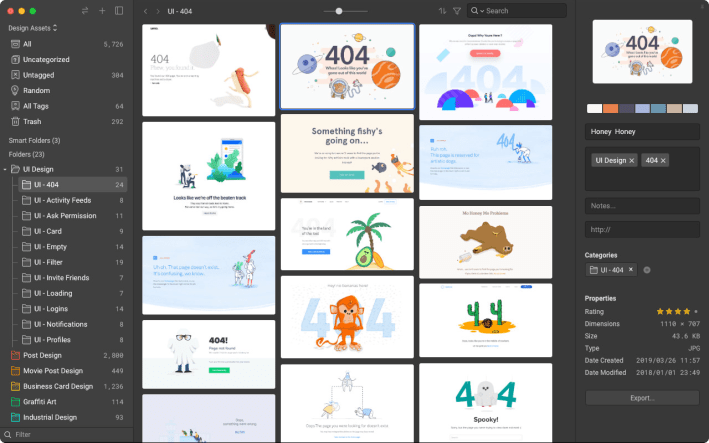
Finally, I’ve integrated Eagle’s new MCP to manage local assets using natural language. This has transformed how I organise inspirations:
- 🔍 Smart Search: Find assets based on complex subjects or themes.
- 🧠 Context Analysis: Evaluate existing tags, folders and annotations.
- 🧹 Tag Cleanup: Automatically merge or delete tags with synonyms, typos or low usage.
- 🗂️ Automated Organisation: Group assets by context automatically.
- 🔠 Semantic Renaming: Convert vague file names into descriptive titles.
- 🪣 Assets Collection: Crawl URLs to identify, tag and save high-quality materials.
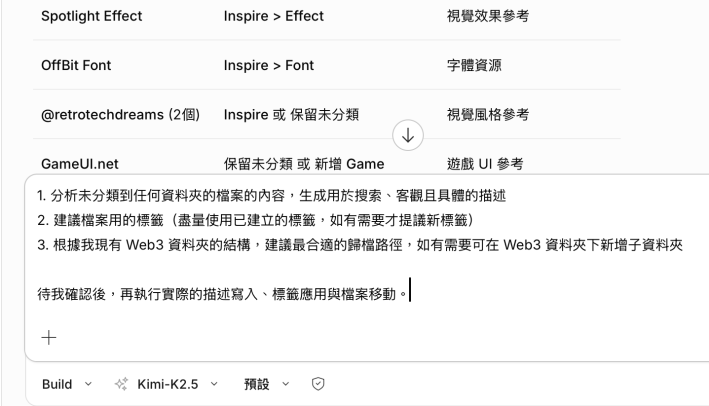
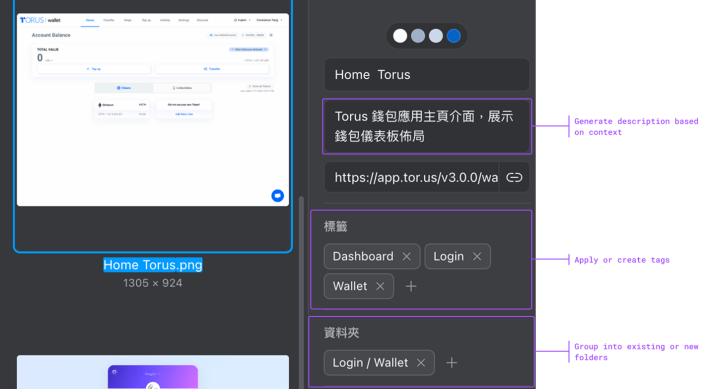
Pro Tip: While Claude Sonnet 4.6 remains the gold standard for accuracy, Kimi K2.5 serves as a cost-effective alternative for routine organizational tasks.
